Is It Your WiFi or Your ISP? How to Tell in 60 Seconds
Every household has the moment: the video call freezes, someone shouts “the internet is down!”, and someone else says “works fine on my phone.” Congratulations — you’ve just discovered that “the internet” is actually a chain of separate links, and exactly one of them is broken.
Finding which one takes about a minute. Here’s the map, then the method.
The chain
When a page loads, the request hops through four distinct territories:
- Your device — laptop, console, TV.
- Your WiFi — the radio link between the device and your router.
- Your router/modem — the box (or boxes) that own your home network.
- Your ISP and beyond — the line out of your house and the wider internet.
“The internet is down” is almost never the whole chain. It’s one link — and each link fails with a different signature.
The 60-second diagnosis
1. Try a second device (10 seconds). If your phone loads pages while the laptop won’t, the problem is that device, not the network. Stop here and reboot the laptop’s WiFi.
2. Get close to the router — or plug in (15 seconds). If everything works standing next to the router but dies in the back bedroom, that’s not an outage, that’s range. Your WiFi link is the weak span. (This is why any honest network monitor also watches its own signal strength — placement changes everything.)
3. Can you reach the router itself? (15 seconds). Load your router’s admin page, or just ping the gateway address. If the router doesn’t answer, your LAN is down — the problem is inside the house. Power-cycle the router.
4. Router answers, internet doesn’t? (10 seconds). That’s WAN down — your side is healthy and the outage belongs to your provider. Nothing you reboot indoors will fix it; check the ISP’s outage page from your phone’s cellular data.
5. “Connected” but nothing loads? (10 seconds). If pings succeed but websites won’t resolve, DNS is broken — the internet’s phone book stopped answering. Switching your DNS server (for example to 1.1.1.1 or 8.8.8.8) often fixes this instantly.
That’s the whole flowchart: device → range → LAN → WAN → DNS. One minute, no jargon, and you know exactly who to blame.
The sneaky one: degraded (not down)
The failures above are honest — things stop working. The infuriating one is the connection that’s technically up but miserable. Three numbers describe it:
- Latency (ping): how long a round trip takes. High latency = everything feels laggy.
- Packet loss: the percentage of packets that never arrive. Even 1–2% makes calls stutter and games rubber-band, while ordinary web browsing hides it.
- Jitter: latency that won’t hold still. The silent killer of video calls — average speed looks fine, but packets arrive in lurches.
A speed test won’t reliably catch these, because they come and go — the 8 PM neighborhood congestion, the microwave oven stomping on 2.4 GHz, the failing modem that drops 3% of everything. Catching them requires watching continuously and keeping a short history, which is precisely the job description of an always-on monitor.
The fix ladder
In order of effort:
- Reboot router and modem. Unplug 30 seconds. Fixes a shocking share of everything.
- Fix placement. Router up high, central, out of cabinets; struggling devices closer or moved to the band that suits them.
- Change DNS if you saw the “connected but nothing loads” signature.
- Call the ISP with receipts. “It’s slow sometimes” gets you a scripted reboot lecture. “I measured 4% packet loss and 180 ms jitter to your gateway between 8 and 10 PM on three consecutive nights” gets you a truck. Evidence changes the conversation.
The difference between guessing and knowing is about sixty seconds of method — or a little screen on your desk that never stops checking.
QUICK ANSWERS
Fair questions
Why does rebooting the router actually help?
Because home routers are small computers that run for months without a break. Restarting clears wedged connection tables, memory leaks, and stuck DHCP leases. It’s a legitimate fix, just not a diagnosis. If you’re rebooting weekly, something real is wrong.
What’s a good ping?
To your own router: a few milliseconds. To major internet destinations: roughly 10–40 ms is common on wired cable/fiber connections. Under about 60 ms feels instant for most uses; competitive gaming likes it lower.
What is jitter, and why does it ruin calls?
Jitter is the variation in latency: ping bouncing between 15 ms and 200 ms instead of holding steady. Real-time audio and video need packets to arrive on a steady rhythm, so unstable latency causes robot voice and frozen frames even when average speed looks fine.
Does 2.4 GHz vs 5 GHz WiFi matter here?
Yes, differently: 5 GHz is faster but has shorter range; 2.4 GHz travels farther and through walls better but is slower and more congested. A device far from the router may be more stable on 2.4 GHz even though 5 GHz benchmarks faster next to it.
THE GADGET FOR THIS OBSESSION
Put it on your desk
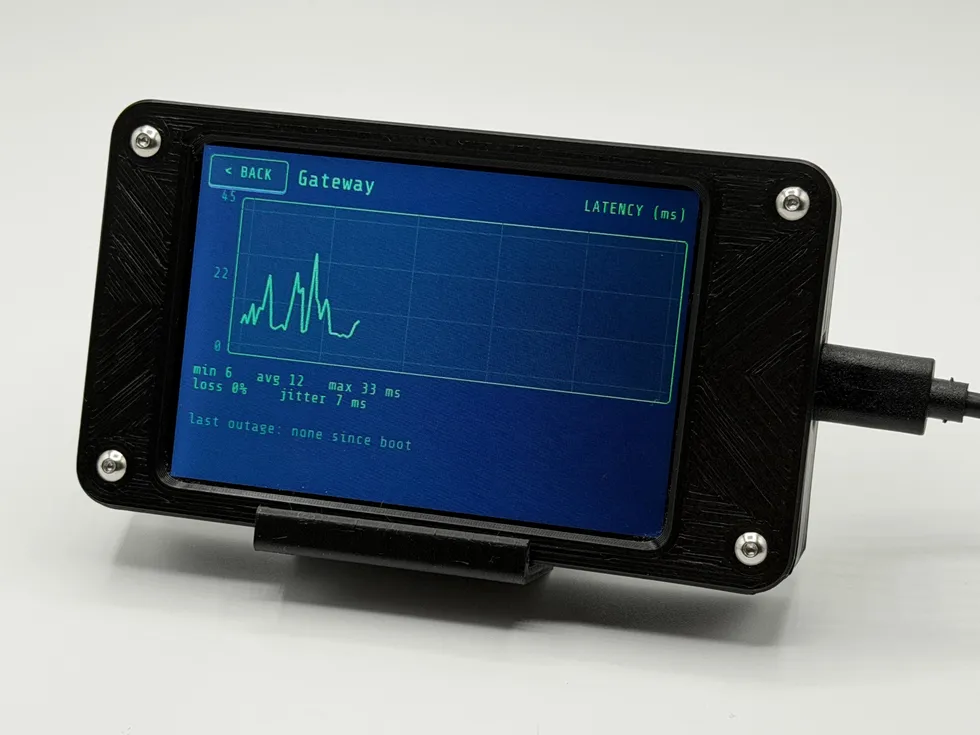
Phosphor also headlines the gift guide for tech obsessives, gamers & homelabbers, if you happen to be shopping for one.
MORE LAB NOTES
- How to Choose a Desktop Flight Tracker: 5 Questions to Ask
- Magnitude vs. Intensity: The Two Numbers Every Earthquake Gets
- What Is a Starlink Train? The String of Lights, Explained
- Weather Watch vs. Warning vs. Advisory: The Severity Ladder
- The Board Inside Every PlankLabs Gadget
- The Printers Behind the Shells: a Flashforge AD5X and a Bambu Lab X2D
- Arduino: The Workbench My Firmware Is Built On
- How the Outdoor Score Works: One Honest Number for “Should I Be Outside?”
- How to Read a Tide Chart (and Why Old Tide Clocks Drift)
- What Is ADS-B? How Flight Tracking Actually Works
- When Can You Actually See the ISS? Visibility Windows, Explained